
Zoom Workplace
zoom.comBusiness
4.175.68K Reviews
- Version
- Varies With Device
- Installs
- 1.00B
- Age Rating
- Everyone
Screenshots




Our Review of Zoom Workplace
 Analysis by Appyee
Have you ever been in a meeting where everyone’s talking over each other, and you’re trying to figure out who’s saying what? Well, enter Zoom Workplace, the app that promises to make your virtual meeting experience smoother and more organized. Having spent some time exploring this app, I’m here to spill the beans on what makes it tick.
Readable screens and straightforward navigation
Zoom Workplace is a business app from zoom.com, and the first impression that matters most to me is how quickly I can get to the essentials. The home screen puts meetings, chats, and contacts within reach instead of making me hunt through unrelated menus. That clear starting point helps when I open the app in a hurry, although the number of tools can still feel like a lot if I only need to join one call.
First things first, downloading and setting up Zoom Workplace is a breeze. Once you’ve got the app on your device, signing in is as simple as pie. You can use your existing Zoom credentials if you’ve got them, or create a new account in a jiffy. The user interface is clean, which I appreciate because who has time to figure out a cluttered app, right? The home screen gives you quick access to meetings, chats, and contacts, making navigation straightforward.
That layout is useful for people who move between conversations and scheduled calls throughout the day. I’d still recommend taking a moment to learn where the controls you use most often are before an important meeting. Knowing how to reach chat or raise a hand without searching helps keep attention on the conversation rather than the screen.
Making meetings easier to follow
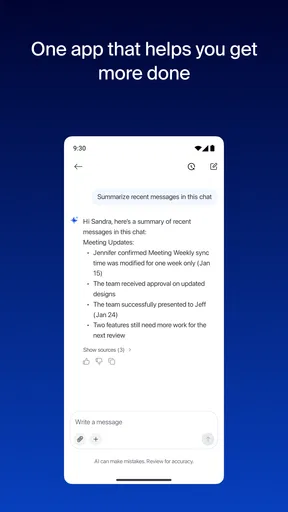
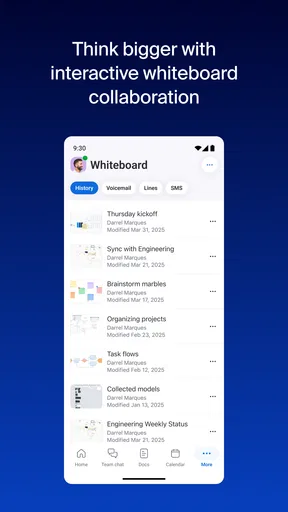
Now, onto the juicy details—what can this app actually do for you? Well, for starters, it integrates seamlessly with your calendar, so scheduling meetings is a piece of cake. One feature that I found particularly nifty is the ability to create team channels. It’s like having your own virtual office where you can chat, share files, and brainstorm with your team without leaving the app.
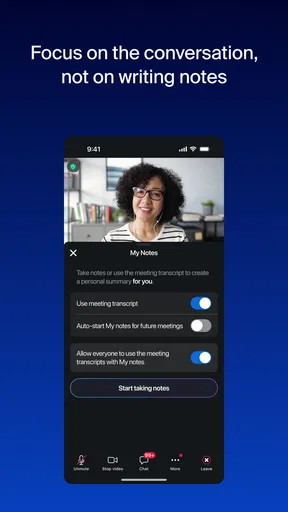
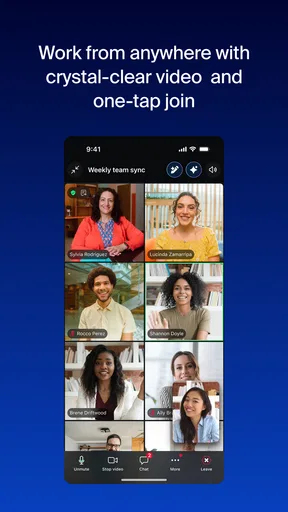
The video call quality is top-notch, which is a relief because nobody wants to deal with blurry video during a critical presentation. Plus, you’ve got the option to record meetings, so you can revisit them anytime. This is a lifesaver if you’re like me and sometimes zone out during a discussion. Another cool feature is the virtual backgrounds. I’ve had way too much fun pretending I’m at the beach during my meetings!
For a practical workflow, I like the idea of using a team channel for the ongoing discussion and a scheduled call for decisions that need a live conversation. That separation gives people a place to catch up on context without expecting everyone to be available at the same moment. After a meeting, a recording can help someone review a complicated explanation, but it is not a substitute for clear notes: a long recording can take more time to search than a short written recap.
Calendar integration is most helpful when your work already revolves around scheduled appointments. If your team coordinates informally, creating a meeting for every small question may add friction rather than save time. I’d keep quick updates in chat and reserve calls for topics where tone, back-and-forth discussion, or a shared presentation genuinely helps.
Motor and sensory considerations
One of my favorite parts about Zoom Workplace is how it makes interaction easy-peasy. The app offers a neat hand-raising feature, which is perfect for those large meetings where everyone’s trying to talk at once. There’s also an instant chat option during meetings, allowing you to drop a quick message without interrupting the speaker. And for the emoji lovers out there, yes, you can react with emojis! It’s a fun way to keep the vibe light and interactive.
Those different ways to participate matter. A participant who does not want to interrupt can use chat or a reaction, while raising a hand offers a more visible signal to the host. In a busy call, agreeing as a group on which method to use can prevent messages and gestures from being overlooked. I would not assume that every participant notices every signal, so a host should still pause and check for questions rather than relying on one cue.
For someone using a phone while moving between places, compact touch controls can be convenient, but small targets and a crowded meeting screen can demand more precision than a quiet desk setup. I would join early when possible, check the microphone and camera controls, and avoid trying to change settings while also following a fast discussion. That small preparation is especially useful for anyone who finds rapid visual switching tiring.
Audio and video also create different demands. A person who is listening in a noisy space may have trouble following speech, while a participant who cannot comfortably stay on camera may prefer to contribute through chat. The app gives a group several interaction paths, but the meeting host still shapes whether those options are welcomed. A considerate team can make a real difference by speaking one at a time, naming the person they are addressing, and leaving room for typed replies.
Using it across real work situations
I find Zoom Workplace most useful when a team treats a call as one part of a wider routine, rather than expecting a meeting to solve everything. In this section, I’ll look at how calls, chat, and follow-up can fit different workdays, then consider what makes participation easier or harder in practice.
Where it fits—and where it does not
A realistic day might begin with checking a calendar appointment, joining a short team call, and then continuing the discussion in a channel while people return to their own tasks. Later, someone who missed the meeting can use its recording to revisit the explanation. This is where combining scheduled calls, messaging, and recordings feels more useful than treating the app as a video-call button alone.
For a small team that already uses Zoom for meetings, keeping conversation and collaboration in the same workplace app can reduce the back-and-forth of switching between separate tools. Compared with a basic video-calling app, its appeal is the broader mix of meetings, chats, contacts, and team channels. Compared with a team chat service that is strongest at persistent text conversation, it may suit people who want meetings to remain central. The better choice depends on where your team already keeps files and decisions; moving everything into one app is not automatically an improvement.
I would recommend it to remote colleagues, distributed project groups, and people who regularly join scheduled calls and need a place for follow-up conversation. It is less compelling for someone who only makes occasional calls and already has a simpler tool that everyone they contact uses. It may also be the wrong fit for a group that needs a carefully controlled, text-first workspace and does not want meeting tools taking up attention.
One useful habit is to decide before a call whether the outcome should be a discussion, a record, or a decision. If it is a decision, I’d make sure someone captures the result in a short message afterward instead of expecting the recording to serve as the team’s memory. If it is a briefing, recording may help absent colleagues, provided the group is comfortable with that approach and knows the meeting is being recorded.
Access in different places and remaining barriers
Using the app at home, at a shared workplace, or between appointments changes what is practical. A stable, quiet setting makes video conversations easier to follow; a phone on the go is better suited to joining briefly than managing a complicated discussion. If I know a meeting will require close attention, I’d choose a place where I can hear clearly and keep the screen steady rather than trying to participate while walking or multitasking.
The app’s many ways to interact can help different people take part, but the overall experience still depends on the device, surroundings, and meeting habits. A participant who has difficulty with touch controls may need more time to find a button. Someone who processes speech slowly may benefit from a calmer pace and written follow-up. These are not problems a meeting app can solve on its own, so I would treat good facilitation as part of using it well.
Another trade-off is that recordings and additional collaboration tools can create more material to manage. If a team records every call without a clear reason, it can become harder to find the few moments that matter. I’d use recordings selectively, keep channel discussions focused, and make the next action explicit. That makes the app feel less like a pile of communication and more like a useful working routine.
Zoom Workplace is free to download, is rated for Everyone, and has an average rating of 4.1 from around 4.5 million ratings, with roughly 74,000 written reviews and over one billion installs. Optional in-app purchases range from about $17 to $160 per item, so I would check what a particular plan or purchase covers before committing. The app has been available since January 24, 2013, and its scale suggests that many people already know the meeting experience, though a familiar name does not guarantee that every team’s workflow will suit it.
My inclusive verdict
All in all, Zoom Workplace is a solid choice if you’re looking for a reliable app to handle your virtual meetings and workplace interactions. It’s packed with features that make it super user-friendly and efficient. Whether you’re working from home, collaborating on projects, or just catching up with your team, this app has got your back.
So, if you’re tired of the chaos and want a more organized meeting experience, give Zoom Workplace a whirl. Trust me, once you get the hang of it, you’ll wonder how you ever managed without it!
My recommendation comes with one qualification: the app works best when a team agrees on simple meeting habits and uses its wider tools with purpose. Before choosing it, ask whether your group needs calls, ongoing chat, or both, and whether everyone can participate comfortably from their usual devices and locations. If meetings are central to your work and you value having several ways to join in, it is worth trying; if you want only occasional, no-frills calls, a lighter alternative may be easier to live with.
Privacy and Permissions
See what permissions an app requests and how it handles your data.
- Calendar
- read calendar events plus confidential information, add or modify calendar events and send email to guests without owners' knowledge
- Contacts
- read your contacts, modify your contacts
- Location
- approximate location (network-based), precise location (GPS and network-based)
- Phone
- directly call phone numbers, read phone status and identity
- Photos/Media/Files
- read the contents of your USB storage, modify or delete the contents of your USB storage
- Storage
- read the contents of your USB storage, modify or delete the contents of your USB storage
- Camera
- take pictures and videos
- Microphone
- record audio
- Wi-Fi connection information
- view Wi-Fi connections
- Device ID & call information
- read phone status and identity
- Other
- view network connections, pair with Bluetooth devices, access Bluetooth settings, send sticky broadcast, change network connectivity, full network access, change your audio settings, control Near Field Communication, run at startup, reorder running apps, draw over other apps, control vibration, prevent device from sleeping, modify system settings
Verdict
Strengths of Zoom Workplace
- User-friendly interface simplifies navigation.
- Seamless integration with calendar apps.
- High-quality video and audio calls.
- Supports large meetings with up to 1,000 participants.
- Robust security features ensure data protection.
Limitations of Zoom Workplace
- Free version limits meeting duration.
- Occasional connectivity issues reported.
- Can consume significant bandwidth.
- Requires frequent app updates.
- Some features hidden behind paywall.
Other Releases by zoom.com
View All
Zoom Workplace for Intune
Business3.7

Zoom Workplace for Chromebook
Business3.9
Similar Picks in This Category
View All
LinkedIn: Community & Network
LinkedIn3.8

Microsoft Teams
Microsoft Corporation4.6

Meta Business Suite
Meta Platforms, Inc.4.6

Webex Meetings
Cisco Systems, Inc.4.5

TeamViewer Remote Control
TeamViewer4.4

File Commander Manager & Vault
MobiSystems4.2
You May Also Like
View All


Frequently Asked Questions
What features does Zoom Workplace offer for remote teams?
Zoom Workplace is equipped with a range of features designed to enhance remote collaboration. It includes video conferencing, screen sharing, team chat, and virtual backgrounds. Additionally, it offers integration with calendars and collaboration tools like Slack and Microsoft Teams, making it easier for remote teams to stay connected and productive.
How secure is Zoom Workplace for business communications?
Zoom Workplace prioritizes security with end-to-end encryption for meetings, ensuring that all communications are private and protected. The app also offers password protection for meetings and waiting rooms to control participant access. Regular updates and security patches are implemented to address potential vulnerabilities.
Can Zoom Workplace be used on multiple devices simultaneously?
Yes, Zoom Workplace supports multi-device usage, allowing users to access meetings, chats, and other features on both mobile and desktop devices. This flexibility ensures that users can join meetings and collaborate on the go, while still having access to all functionalities on their preferred device.
Is there a limit to the number of participants in a Zoom Workplace meeting?
The number of participants allowed in a Zoom Workplace meeting depends on the subscription plan. The basic plan supports up to 100 participants, while higher-tier plans can accommodate up to 1,000 participants. This scalability makes it suitable for both small team meetings and large corporate events.
What are the system requirements for running Zoom Workplace?
Zoom Workplace is compatible with most devices and operating systems. For Windows, it requires Windows 7 or later; for Mac, OS X 10.10 or later. Mobile apps are available for iOS and Android. A stable internet connection and a device with a microphone and camera are recommended for optimal performance.
